
Pipelines
A pipeline is an ordered list of steps applied to a CSV file. It is stored as a *.csvpipe.json file in your workspace, so it can be reviewed, versioned and shared like any other source file.
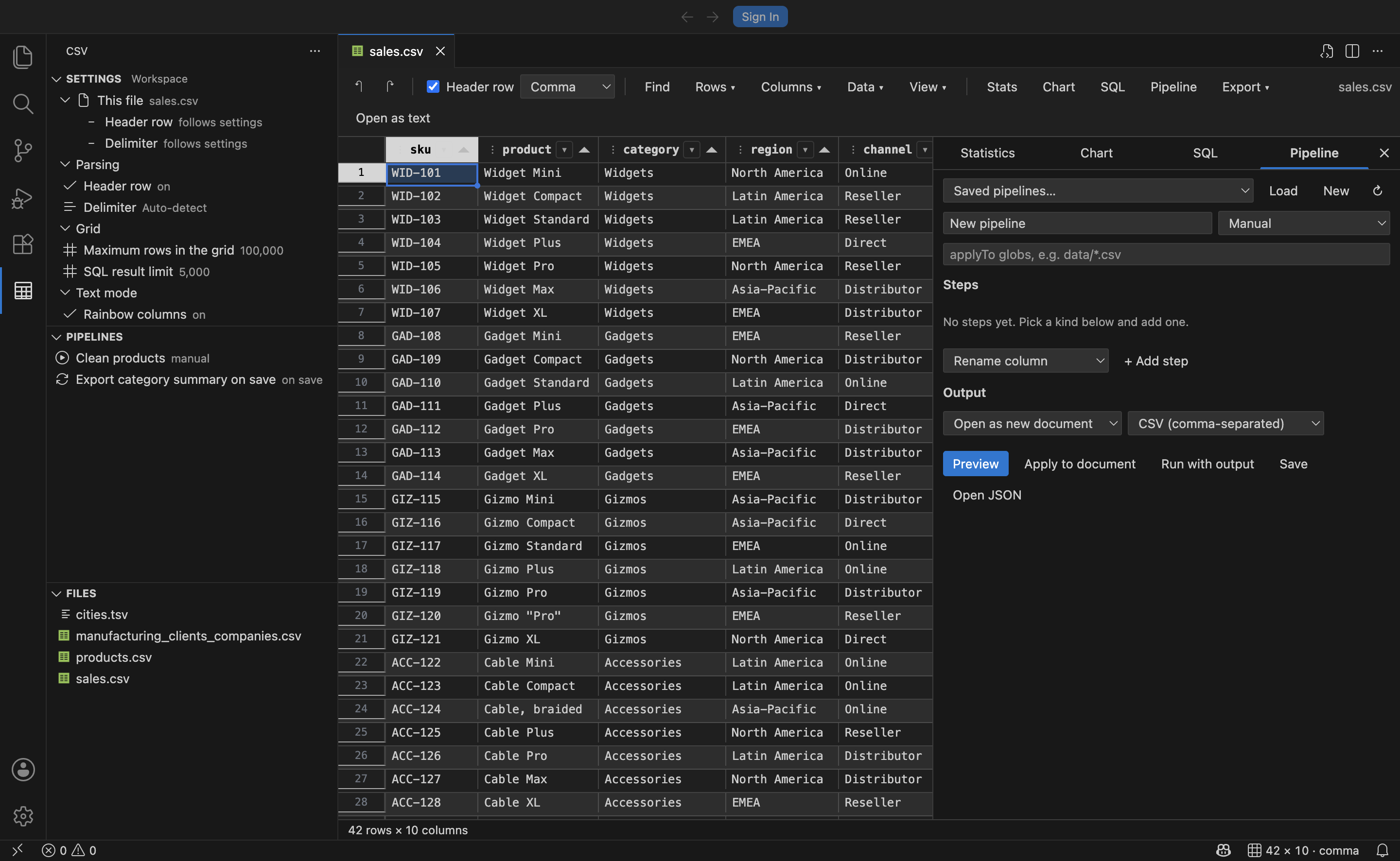
Pipelines exist because the same cleanup usually happens more than once. Instead of repeating the same twelve manual edits on every export, you describe them once and run them on demand, when the file opens, or when it is saved.
Three ways to write a step
Section titled “Three ways to write a step”| Tier | What it is | When to use it |
|---|---|---|
| No-code | A step fully described by form fields | Renaming, sorting, trimming, deduplicating, splitting |
| Low-code | A one-line expression evaluated per row | Filtering on a condition, computing a derived column |
| Code | JavaScript, a script file, SQL, or an external command | Anything the first two cannot express |
All three coexist in the same pipeline. A typical one starts with no-code cleanup, filters with an expression, and finishes with a SQL aggregation.
Building one
Section titled “Building one”Open the Pipeline panel from the grid toolbar. Pick a step kind from the dropdown, add it, and fill in its fields. Column name fields autocomplete from the current file.
- Preview runs the pipeline and shows the result plus a per-step report of rows in, rows out and elapsed time, without touching your file.
- Apply to document runs it and replaces the document contents. It is a normal undoable edit.
- Run with output runs it and delivers the result to the configured output.
- Save writes the pipeline to a
.csvpipe.jsonfile. - Open JSON opens that file in the text editor, where the bundled JSON schema gives you completion and validation.
Alternatively, run CSV: New Pipeline to start from a template, or write the JSON by hand.
File format
Section titled “File format”{ "$schema": "./schemas/csvpipe.schema.json", "name": "Clean sales export", "description": "Normalise the weekly export and write a category summary.", "applyTo": ["data/sales-*.csv"], "trigger": "onSave", "output": { "target": "file", "format": "json", "path": "out/${name}-summary.json" }, "steps": [ { "kind": "trim" }, { "kind": "fillEmpty", "columns": ["units_sold", "revenue"], "value": "0" }, { "kind": "filter", "expression": "in_stock && units_sold > 0" }, { "kind": "compute", "column": "margin", "expression": "round(revenue * 0.18, 2)" }, { "kind": "sql", "query": "SELECT category, SUM(revenue) AS revenue FROM csv GROUP BY category" } ]}| Field | Meaning |
|---|---|
name |
Display name. Required. |
description |
Free text. |
applyTo |
Workspace-relative glob patterns naming the files this pipeline is for. Supports *, **, ? and {a,b}. |
trigger |
manual, onOpen or onSave. Defaults to manual. |
output |
Where the result goes. Defaults to opening a new document. |
steps |
The ordered list. Required. |
Every step accepts an optional label, shown in reports instead of the generated description, and disabled: true to skip it without deleting it.
Triggers
Section titled “Triggers”| Trigger | When it runs |
|---|---|
manual |
From the panel, from CSV: Run Pipeline…, or by right-clicking the .csvpipe.json file |
onOpen |
When a file matching applyTo opens in the grid. The result is applied to the document, so it is dirty and undoable until you save. |
onSave |
After a matching file is saved. Typically used to write a derived file. |
onOpen is pre-processing: normalise a messy export the moment you look at it. onSave is post-processing: keep a JSON summary or a cleaned copy in step with the source.
Automatic triggers only fire for files matching applyTo. A pipeline with no applyTo never triggers automatically.
Outputs
Section titled “Outputs”target |
Result |
|---|---|
replace |
Writes back to the source document. Undoable. |
newDocument |
Opens an untitled editor beside the source. The default. |
file |
Writes to path. |
clipboard |
Copies to the clipboard. |
format accepts csv, tsv, semicolon, pipe, json, markdown, html or sql.
path is workspace-relative and supports four placeholders:
| Placeholder | Expands to |
|---|---|
${name} |
Source file name without its extension |
${ext} |
Source file extension |
${dir} |
Source directory, workspace-relative |
${pipeline} |
Pipeline name, sanitised for a file name |
Step reference
Section titled “Step reference”No-code steps
Section titled “No-code steps”| Kind | Fields | What it does |
|---|---|---|
trim |
columns |
Strips leading and trailing whitespace |
changeCase |
columns, case |
upper, lower or title |
fillEmpty |
columns, value |
Replaces blank cells |
replace |
columns, find, replacement, regex, caseSensitive |
Find and replace in cells |
rename |
from, to |
Renames one column |
select |
columns |
Keeps only these columns, in this order |
drop |
columns |
Removes these columns |
sort |
column, direction |
Sorts rows; numeric columns sort numerically |
dedupe |
columns |
Keeps the first row of each distinct combination |
limit |
count, offset |
Keeps a slice of rows |
splitColumn |
column, separator, limit, regex, removeSource |
Text to Columns |
mergeColumns |
columns, separator, name, removeSources |
Concatenates columns |
transpose |
none | Swaps rows and columns |
removeEmptyRows |
none | Drops rows that are entirely blank |
sample |
count, seed |
Keeps a random subset, deterministic for a given seed |
Omitting columns, where it is optional, means every column.
Low-code steps
Section titled “Low-code steps”filter keeps rows where an expression is true. compute adds or overwrites a column with an expression’s value.
Inside an expression, each column is a variable. Names are sanitised to valid identifiers, so unit price becomes unit_price and 2nd becomes _2nd. The original name is always reachable through row["unit price"]. You also get index, the zero-based row number, and columns, the array of column names.
Values are typed before evaluation: columns inferred as numeric arrive as numbers, boolean columns as booleans, blanks as null. So units_sold > 0 works without casting.
in_stock && units_sold > 0round(revenue * 0.18, 2)contains(product, "widget") ? "core" : "other"daysBetween(launched, today()) > 365Helper functions
Section titled “Helper functions”| Group | Functions |
|---|---|
| Conversion | num, str |
| Text | upper, lower, title, trim, len, left, right, substr, pad, split, join |
| Text tests | contains, startsWith, endsWith, matches |
| Text edits | replace, regexReplace |
| Numbers | round, abs, floor, ceil, min, max, format |
| Logic | iif, coalesce, isEmpty, isNumber |
| Dates | date, isoDate, year, month, day, today, now, daysBetween |
| Other | hash, uuid |
Math, String, Number, Date, JSON and RegExp are available too.
Code steps
Section titled “Code steps”script runs inline JavaScript. The body receives columns, rows (an array of objects), helpers and table. Return an array of row objects, a { columns, rows } object, or nothing if you mutated the rows in place.
{ "kind": "script", "code": "return rows.filter((r) => r.revenue > 1000);" }scriptFile loads a workspace .js file that exports a function taking (table, helpers).
module.exports = function transform({ columns, rows }, helpers) { return rows.map((row) => ({ ...row, margin: helpers.round(row.revenue * 0.18, 2) }));};module.exports, export default and exports.transform are all recognised. Run CSV: New Pipeline Script for a template. The file must live inside the workspace.
sql runs a SQLite query against the current data, which is available as the table csv. The result becomes the data for the next step.
command runs a shell command from the workspace root, writing the data to its standard input and reading the result from its standard output. Set format to csv or json.
{ "kind": "command", "command": "python3 scripts/clean.py", "format": "json" }This is the escape hatch: pandas, R, jq, awk, csvkit, Miller and qsv all work here.
#!/usr/bin/env python3import csv, sysreader = csv.DictReader(sys.stdin)writer = csv.DictWriter(sys.stdout, fieldnames=reader.fieldnames)writer.writeheader()for row in reader: row["name"] = row["name"].upper() writer.writerow(row)Security
Section titled “Security”Expressions and inline scripts run in a Node vm context inside the extension host, with a time limit and without Node’s globals: there is no require, process or fs. External commands run in your shell with your permissions.
A vm context is an isolation mechanism, not a security boundary, and a command step is arbitrary code by design. Pipelines are treated the same way VS Code treats tasks:
- Steps that evaluate anything, which is
filter,compute,script,scriptFile,sqlandcommand, only run in a trusted workspace. - Set
csv.pipelines.allowScriptstofalseto disable them even in a trusted workspace. No-code steps keep working. - The time limit is
csv.pipelines.timeoutMs, defaulting to 10 seconds. Commands get six times that.
Review a .csvpipe.json file that arrives with a cloned repository before running it, exactly as you would review .vscode/tasks.json.
Logging
Section titled “Logging”Every run is logged to the CSV Pipelines output channel: which pipeline, which file, each step’s row counts and timing, and the full error when a step fails. Run CSV: Show Pipeline Log or click Show log on an error notification.
When a step fails the pipeline stops there and nothing is written.