
Filtering, search and sort
AutoFilter
Section titled “AutoFilter”Every column header has a caret button. Click it, or press Alt+Down with a cell in that column selected, to open the AutoFilter dropdown.
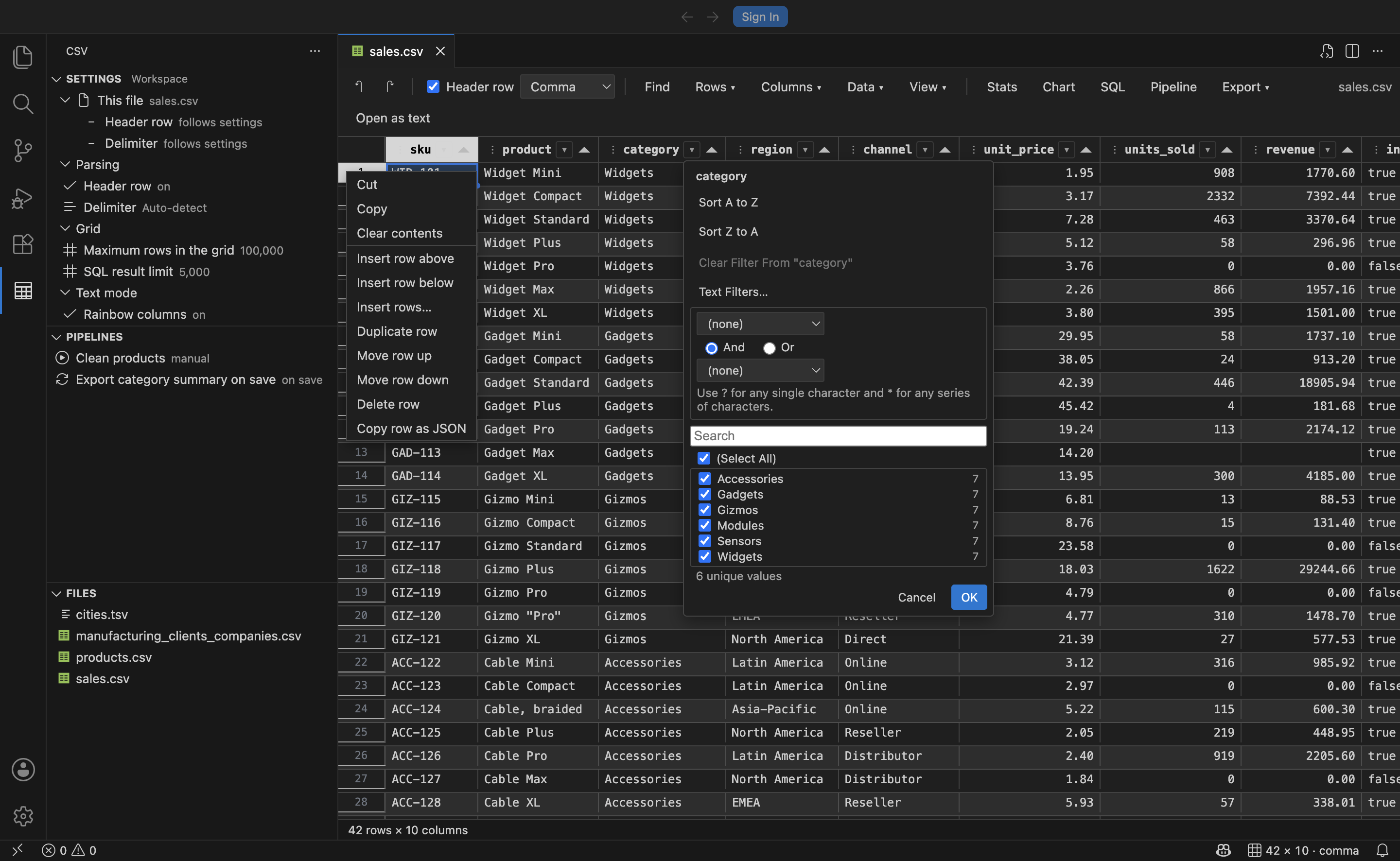
The dropdown has four parts.
Sort. The labels follow the column’s type, so a number column offers Sort Smallest to Largest and a date column offers Sort Oldest to Newest. Sorting from here sorts the view only.
Clear Filter From “column”. Disabled when the column has no filter.
Text, Number or Date Filters. Two conditions joined by And or Or. The operator list depends on the column type.
| Column type | Operators |
|---|---|
| Text | Equals, Does not equal, Contains, Does not contain, Begins with, Ends with, Is empty, Is not empty |
| Number | Equals, Does not equal, Greater than, Greater than or equal to, Less than, Less than or equal to, Between, Is empty, Is not empty |
| Date | Equals, Does not equal, Before, After, Between, Is empty, Is not empty |
Text comparisons are case-insensitive and support Excel’s wildcards: ? matches any single character and * matches any run of characters. Gi* matches Gizmo and Gizmo XL.
The value list. Every distinct value in the column with its row count, sorted by type: numbers numerically, dates chronologically, everything else alphabetically, with blanks last as (Blanks).
(Select All)is tri-state and reflects the current selection.- The search box filters the list. As in Excel, searching checks the visible results, and an Add current selection to filter option keeps what you had already checked.
- Values are capped at 10,000 distinct entries and 2,000 rendered at a time; narrow the search to reach the rest.
Value lists cascade. When another column is already filtered, a dropdown only offers values that exist in the rows surviving that filter, so you never select a combination that matches nothing.
Filtered columns show a highlighted caret, and hovering it describes the filter. The status bar reports how many rows are showing and how many columns are filtered, with a link to clear everything.
Filter by a cell’s value
Section titled “Filter by a cell’s value”Right-click a cell and choose Filter by this value to filter that column to exactly that value. It is the fastest way to answer “show me the other rows like this one”.
Find and replace
Section titled “Find and replace”Press Ctrl+F (Cmd+F on macOS) to open the find bar.
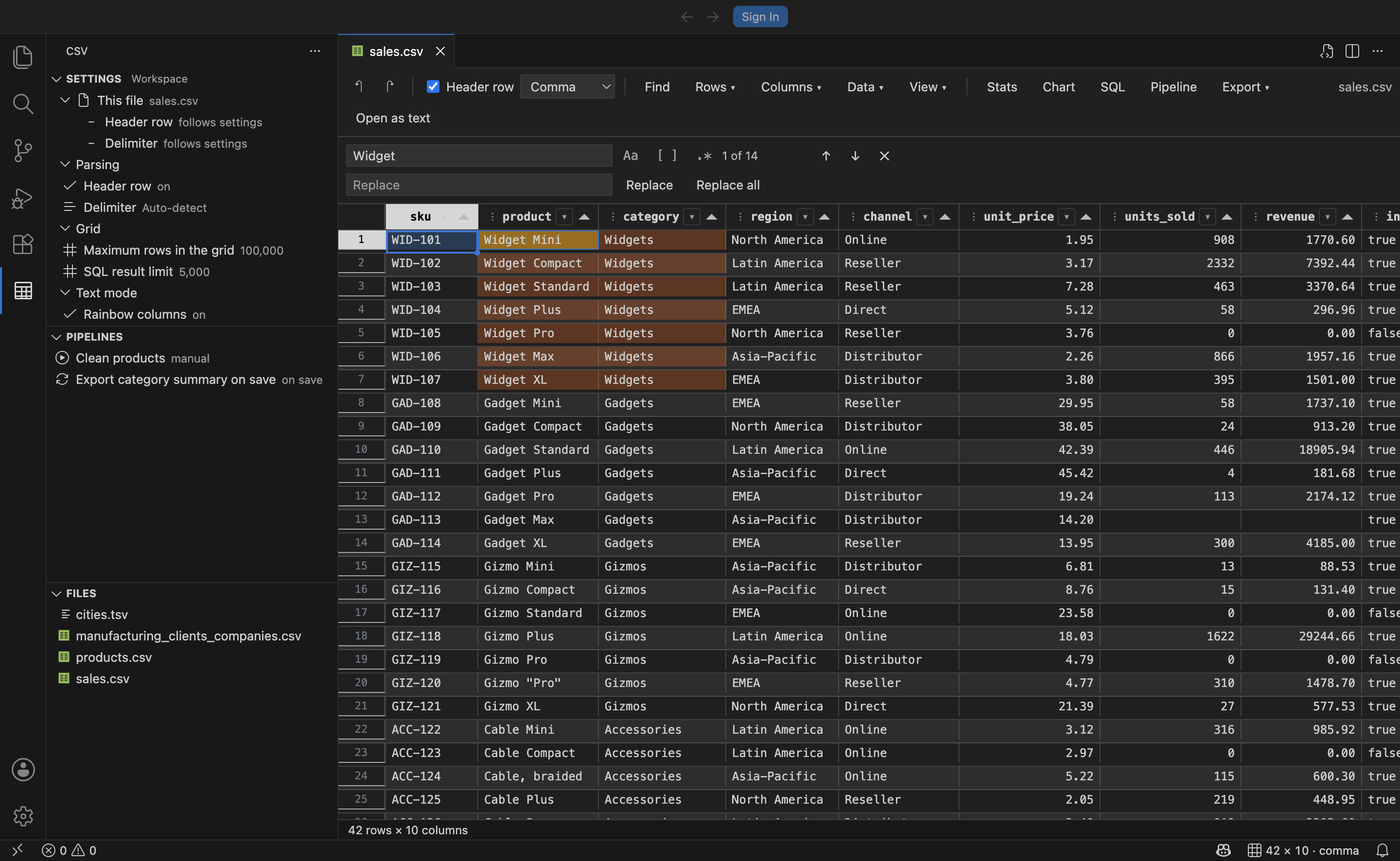
- Three toggles: match case, match whole cell, and regular expression.
- Every match is highlighted in the grid; the current match is highlighted more strongly and scrolled into view.
EnterandShift+Enter, or the arrow buttons, step through matches.- Replace changes the current match; Replace all changes every match in one undo step.
- In regular expression mode the replacement supports capture groups such as
$1. In plain mode the replacement is inserted literally, so$&stays$&.
Find covers the rows loaded in the grid. On a file larger than csv.maxRows, use SQL or a pipeline to reach the rest.
Sorting
Section titled “Sorting”There are three ways to sort, and they differ in whether the file changes.
| Method | Effect |
|---|---|
| Click a column header’s sort arrows | Sorts the view. The file is untouched. |
| AutoFilter dropdown, Sort A to Z or Z to A | Sorts the view. The file is untouched. |
| Header menu, Sort ascending or descending (rewrite file) | Reorders the rows in the file. Undoable. |
| Data menu, Sort… | Either, depending on the checkbox in the dialog. |
The Sort dialog offers three levels: sort by one column, then by another, then by a third.
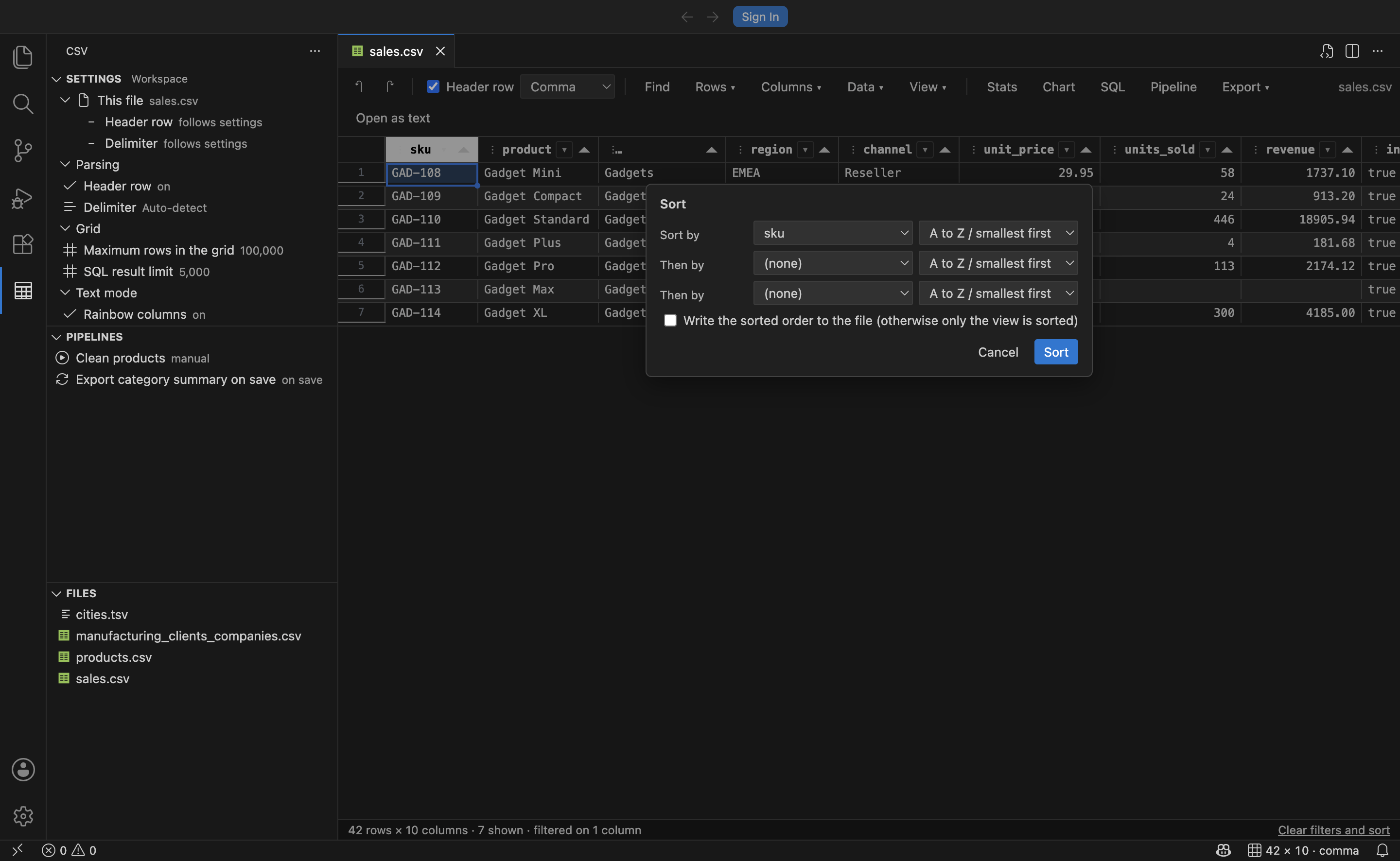
Numeric columns sort numerically, so 10 comes after 9. Blank cells always sort last, matching Excel. The sort is stable, so rows that compare equal keep their original relative order.
Check Write the sorted order to the file to make the new order permanent. Leave it unchecked to sort only what you are looking at.